Roof layout · Step-by-step guide
Import an Aurora Solar DXF
Bring an exported roof drawing and its modules into SDL, then check what came across.
Before you start
- A DXF file exported from your Aurora design. This guide starts with that file already downloaded.
- A self-designed SDL project at the correct site address, with Roof layout open.
1. Choose the DXF file
In Roof layout, stay on the Layout step.
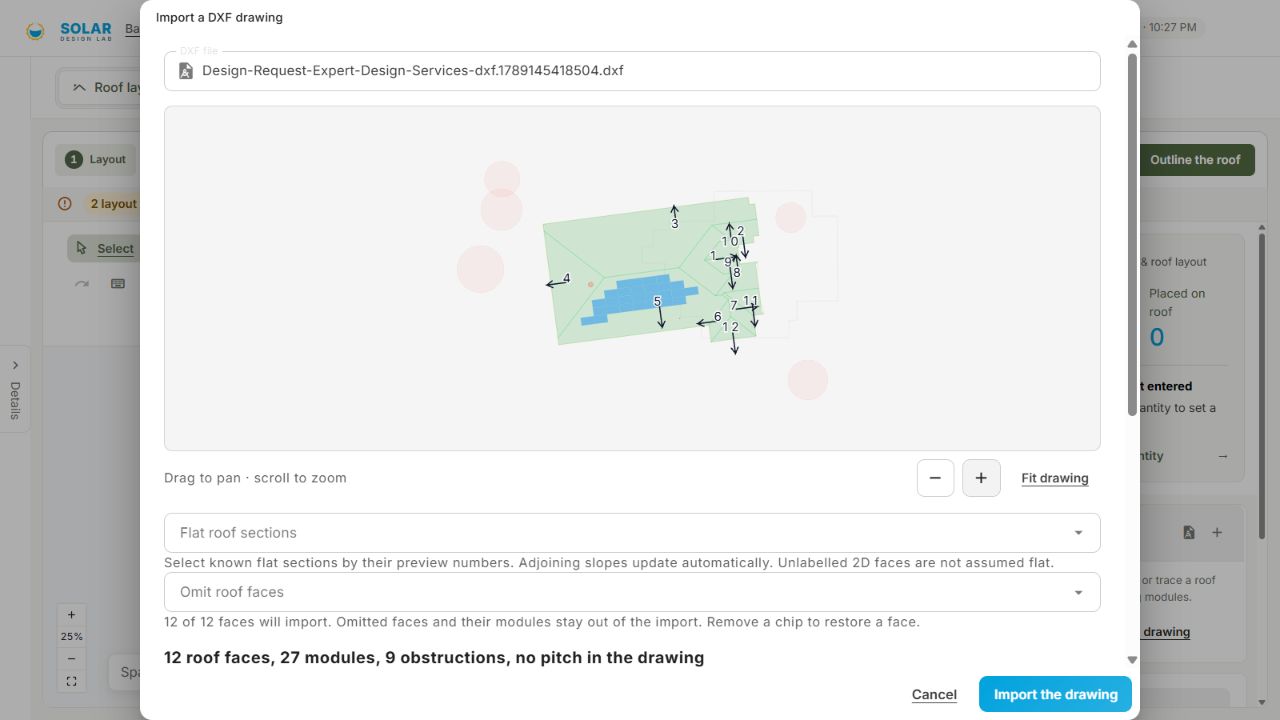
- Find Roof faces in the right-hand panel and choose Import a DXF drawing.
- Click DXF file and select your exported .dxf file.
- Wait for the preview. Nothing is placed until you choose Import the drawing.
2. Check what SDL found
Compare the preview with the design you exported.
- Use the + button to inspect the roof shapes, module layout and direction arrows.
- Check the face and module counts beneath the preview.
- Open What else it read to check units, module sizing and anything left out.
In this example SDL found 12 faces and 27 modules, but no roof pitch. Setback, pathway and property-line layers were excluded. Your file may produce different results.
3. Review the import options
Scroll down within the dialog to reach the remaining controls.
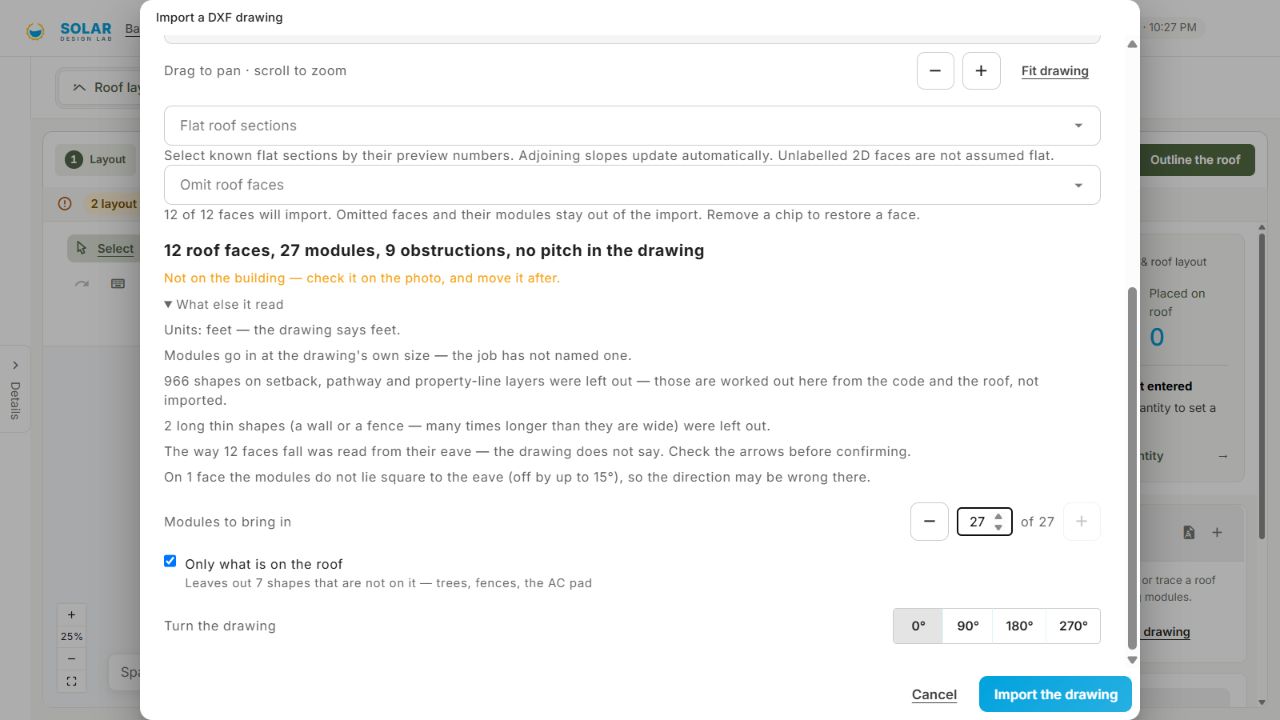
- Use Modules to bring in to reduce the imported count if needed. Leave it at the full count to bring in all detected modules.
- If the drawing faces the wrong way, choose a turn and wait for the preview to update.
- Read any placement warning before choosing Import the drawing. Cancel if this is the wrong file.
The example warns that the drawing is not aligned to the building. An import preview is not confirmation that the drawing matches the site.
4. Review the imported roof
After import, the roof faces and modules appear in the layout.
- Check Placed on roof and the face list against the count you intended to import.
- Check the drawing against the site imagery. Do not continue with a misplaced or incorrectly rotated roof.
- Review the roof pitch and direction arrows. An assumed pitch, such as 4:12, is not a measurement from Aurora.
- Check obstructions and review the pathways and property boundary in SDL before continuing with the design.
This imports layout geometry. Equipment selection, electrical connections and the remaining design checks still need your review.