Roof wiring · Step-by-step guide
Move a string to another inverter input
Change a connected string’s MPPT input and check its voltage limits on the roof.
Before you start
- A project with roof strings and a generated electrical drawing.
- This example uses Powerwall 3, three strings and an unused MPPT 4 input.
1. Select the roof string
Open Roof layout, then Wiring.
- Select a circuit such as S1.
- Check the inverter and MPPT shown for it.
- Choose Change input. For a string already connected on the one-line, SDL opens its electrical properties.
2. Choose an open input
In the string’s electrical properties, expand String sizing if needed and choose Change input.
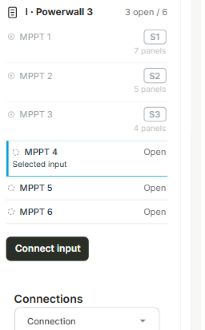
- Read Input assignments. Occupied inputs name their strings; available inputs say Open.
- Choose an open input. Here, MPPT 1 has S1 and MPPT 4 is open.
- Choose Connect input and wait for the update.
3. Check the result on the roof
Return to Roof layout, then Wiring, and select the same string.
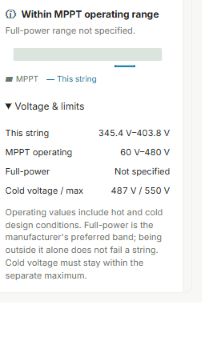
- Confirm the new input. This example now shows S1 on Unit 1, MPPT 4.
- Read the status and open Voltage & limits for the operating range and cold-voltage check.
- Full-power: Not specified is missing product information, not a failed maximum-voltage check. Read the separate limits and any actual warning.
Changing inputs does not automatically fix an oversized string. Follow the specific limit shown for the selected equipment.
4. Confirm the saved assignment
Wait for Saved before leaving.
- Reopen the project and return to Wiring.
- Confirm that the circuit still names the intended input. S1 retained MPPT 4 in this example.