Battery installation · Step-by-step guide
Add a battery location plan
Place indoor batteries, draw their room and check the battery location sheet in your downloaded plan set.
Before you start
- A project with the batteries selected and its electrical drawing created.
- Measured room dimensions, battery locations and the positions of doors, windows and other relevant features.
- Choosing an indoor installation area adds a typical installation detail, a general drawing of the installation arrangement. To show your actual room, also place the batteries and draw the surrounding walls.
1. Choose the installation area
Open Electrical, then Continue to equipment & routing. Find Battery locations above the equipment list.
- Choose the actual area for each battery: Outside, Attached garage, Detached garage or Other indoor space.
- Answer the vehicle-exposure question when shown, using the actual site conditions.
You can also select a battery and change Installation area in its panel. Outside batteries remain on the site plan; they do not add an indoor battery location sheet.
2. Place the batteries and draw the room
The progress message identifies the battery that still needs a location.
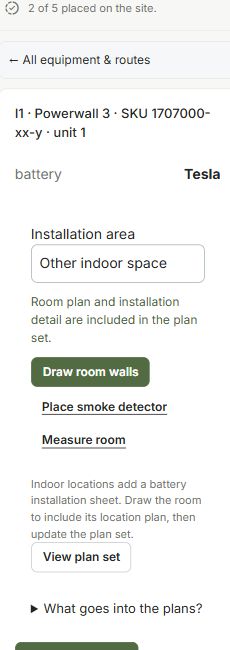
- Choose the placement button for the named battery, such as Place B1 on plan, then click its measured position on the equipment-location drawing. Repeat for the other batteries in that room.
- Select a battery and choose Draw room walls.
- Click the measured room corners, then press C to close the wall outline.
If the sheet has only the typical installation detail, check that the batteries are placed and have nearby room walls. A room drawn elsewhere does not describe their location.
3. Add openings and devices
Use Floor plan to add the room features.
- Choose Door or Window and click the two endpoints of each opening.
- Choose Room name, place its marker and edit the name.
- For Other indoor space, the controls include Place smoke detector. Garage controls include Place heat detector. Add the devices required for your installation at their specified locations.
These controls draw devices. They do not determine every applicable fire-code or manufacturer installation requirement.
4. Dimension the room
Choose Measure room from the selected battery’s controls.
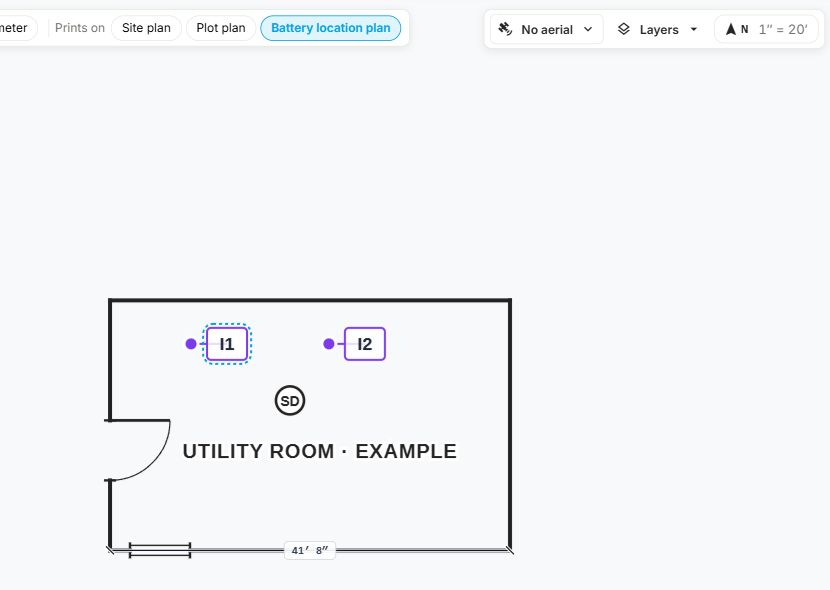
- Check that the measurement destination is Battery location plan.
- Pick the two endpoints and press Enter to keep the dimension.
- Dimension the room and locate the batteries relative to its walls and nearby openings.
Using Measure room keeps these dimensions with the battery location plan rather than the site plan. The pictured room is sample geometry, not an installation recommendation.
5. Check the battery sheet
Choose View plan set. Select the paper size, then Create plan set or Update plan set.
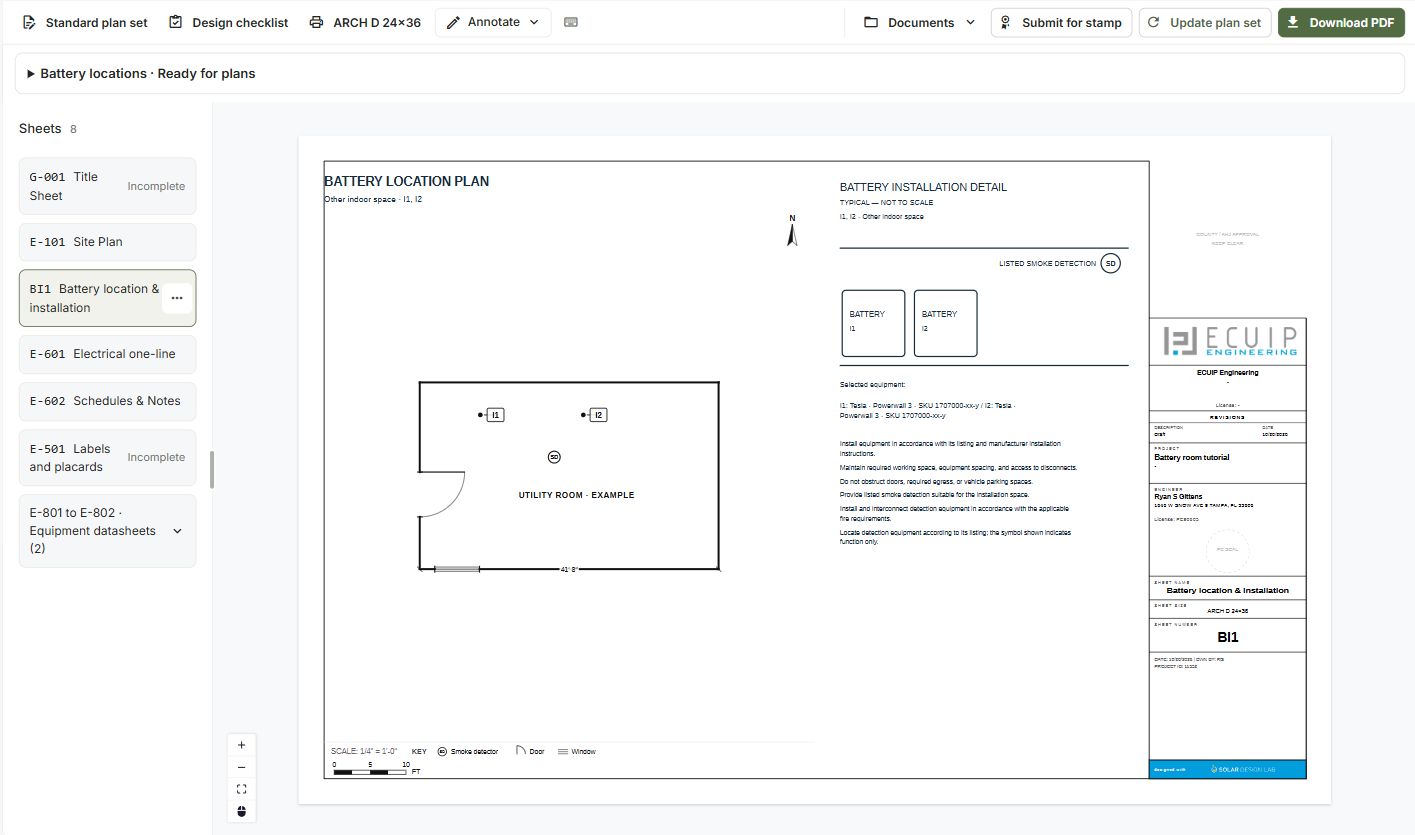
- Open BI1 Battery location & installation in the sheet list.
- Check the room walls, battery tags, openings, dimensions, device key and scale caption.
- The location plan should match your measured room and battery positions. The separate typical detail shows the general installation arrangement.
Ready for plans means the drawings are available to the plan set. It is not a clearance or engineering approval. Update the plan set after changing the drawing.
6. Download and inspect the PDF
Choose Download PDF and open the downloaded battery location sheet.
- Confirm that the room, batteries, dimensions and device key appear clearly on the exported page.
- If the project still has unresolved design items, you may see Download draft PDF. A draft is not an issued or approved permit set.
- To revise the room later, expand Battery locations in Plan Set and choose the battery’s Edit location. Update the plan set again after your edits.
Common questions
Why does my sheet show only the typical installation detail?
Selecting an indoor installation area adds that detail. Place the batteries at their actual locations and draw nearby room walls to add the location plan.
Where do outdoor batteries appear?
Outdoor batteries remain on the site plan. Selecting Outside does not add an indoor battery location sheet for them.
Does Ready for plans mean the installation is approved?
No. It means the room drawing and typical detail are available for the plan set. Update it to capture your latest edits, and resolve the applicable installation requirements for the project.